My AI Productivity Tools
As I work more and more with LLMs, my workflows are changing. There’s a variety of small tools I’ve found that help be more productive.
My main thinking here is to improve the information loop between me and the LLM. How can I give information to AI faster, and give it more information? And how can AI give me information back to me that accelerates what I need from it? How can I know it was waiting for input from me, and unblock it quickest without constantly watching it.
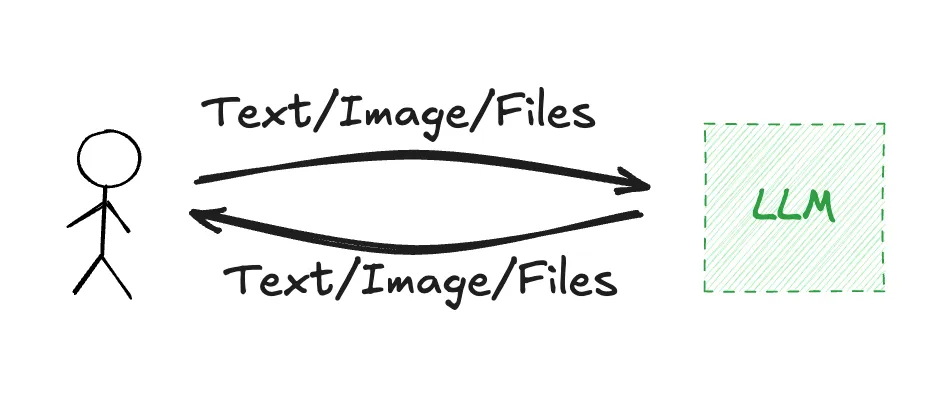 Because we’re so often going back and forth in these steps, it’s worth finding optimizations in these flows. Even small ones done frequently will compound over time.
As always, some automations and productivity hacks turn out to be too clunky to use or I can’t remember on the spot how to use them, so they never really become automatic behaviors. But some are absolute goldmines and I use regularly every day. The key is to be honest about how often you are getting a decent ROI on your own tools, and not beating yourself up too much for having a bunch of old tools you made sitting gathering dust on the shelf. Adoption wins arguments.
My top AI productivity tips so far
The following product nerdery is just some of the dust-free tools that I use daily. I’ll update this note periodically as I find new ones.
-
Save screenshots to Clipboard instead of Desktop. I used to default save screenshots to my Desktop and then drop that file into a chat or attach to an email. Now I want to reduce friction with saving screenshots into an AI chat so having it saved to clipboard is actually my primary use case now. This just required using cmd+shift+3 instead of cmd+shift+4:

-
Use Clop to automatically compress clipboard images. After LLMs borked a few times that my image was too large, I wanted to remove that friction. Previously I used ImageOptim but Clop has just completed changed the game for me. It automatically compresses images on my clipboard (with zero loss) and gives me a one-click option to reduce image dimensions if I want. This makes it faster for LLMs to process the image, uses less tokens saving your precious context, and I haven’t hit the “image too big” error since.
-
Keyboard shortcut for clipboard image → file. Sometimes I still need that clipboard image as a file. Maybe there’s a simpler way to do this, but what I did was created a Quick Action in Automator with this Applescript and gave this a keyboard shortcut of cmd+shift+6
on run {input, parameters}
	set img to the clipboard as «class PNGf»
	set timeStamp to do shell script "date +%Y.%m.%d-%I.%M.%S%p"
set fileName to "Screenshot-" & timeStamp & ".png"-
Set up a voice dictation app. I’m still in the intermediate days of this and don’t think I’ve got the my final flow here yet, but after trying several apps I’ve settled on VoiceInk on my mac, because it’s open source, has lifetime pricing, and works just as well for me as popular options that have far more expensive monthly subscriptions. I use NVIDIA’s Parakeet v3 model for fast local transcription. When I need post-processing (like turning a meandering braindump into an initial todo list), it uses Claude Haiku 4.5 (I defaulted to Opus initially but Haiku is way faster and seems to do a similar job).
On mobile, I record myself in VoiceMemos on iOS and then process that with Granola/VoiceInk/Claude/Gemini at my computer later. I haven’t figured out the best flow here yet but this happens regularly enough that I’ll optimize it soon.
-
Set up a meeting notes app. I use Granola to record meetings, calls and summarize notes. I also use this at home or when driving while talking over plans with my family. It does a solid job of recording, transcribing, and doesn’t intrude or show up in voice calls.
-
Set Caps Lock key for voice dictation. YMMV but it wasn’t working for me to use many of the default keyboard shortcuts that Voice Dictation apps use, Caps Lock is a massive useless button I never use, and MacOS wouldn’t let me use the F5 key with the mic icon on it. So I wrote up a simple way to set this up: Caps Lock for Keyboard Shortcuts
-
Obsidian for notes. I’ll need to write a bigger note on this, but I consolidate my primary notes app into Obsidian (after using a variety over the years across Apple Notes, Obisidian, Logseq, Google Docs, Workflow, Quip, Notion etc) because it saves all my notes as markdown files in my filesystem that LLMs can interact with directly, and its a decent notes editor. I disabled all community plugins and am currently running it with just core and some custom CSS which has been refreshing.
Currently trialing but not ready to recommend or write about
At least half of these will likely make the cut based on my usage patterns so far, otherwise I’m not sure I’m actually getting material benefit from.
- A variety of Claude<>Obsidian skills and commands
- Switching from Terminal.app to Ghostty (after a brief detour via iTerm2)
- Setting up TMUX and Blink for mobile<>desktop interaction with Claude Code
- Setting up a long running deno server on my mac
- Setting up a long running deno server remotely in Sprites.dev
- Setting up HomeAssistant on a RaspberryPi, and transitioning off Google Home, Alexa, etc
- Setting up an old Mac Mini clean room style to run Claude Code in yolo mode for iOS/MacOS development.
- Setting up “Ghost Me” accounts on Google/Apple/Github so I can have agents run in yolo mode but restrict what read/write perms they have to core stuff, like you might if setting up a contractor on their first day.
- A series of bash scripts that I can trigger with Alfred using keyboard shortcuts or other triggers
- Switching from Claude Code to Open Code